


Authenticator App
4.1830.00 Reviews
App Specs
- Version
- 92.0
- Updated On
- License
- Free
- Downloads
- 10,000,000+
- Developer
- Starnest JSC
- Categories
- Productivity
- Platform
- Android
Screenshots
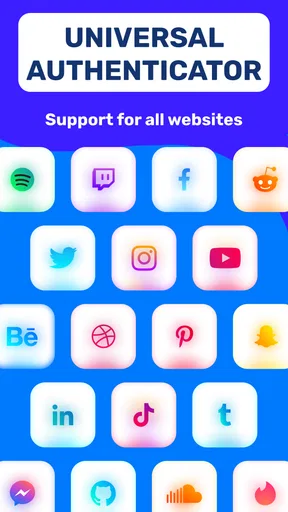
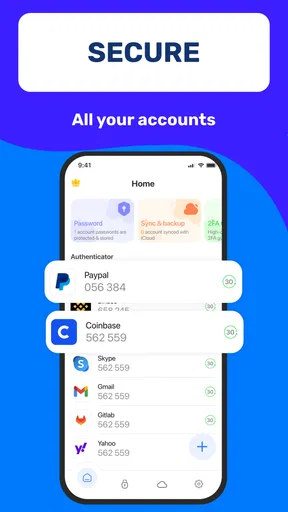
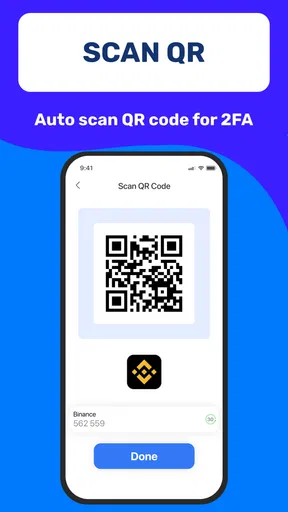
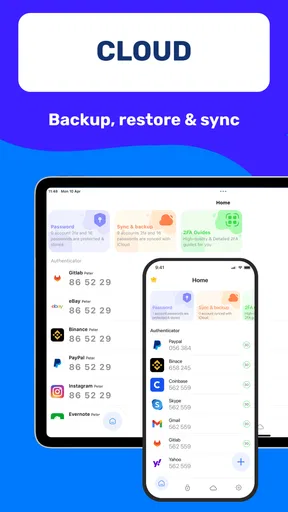
 Analysis by AppCompare
When I first started using Authenticator App, I wanted one simple thing: a dependable way to get a sign-in code without hunting through messages or trying to remember which account used which security method. It is a productivity app from Starnest JSC, and its focus is putting authentication tools and password management together. The first useful result is straightforward: once an online service is linked, I can open the app and retrieve a code when that service asks me to verify my identity.
That small step matters most when you are signing in from a new phone, browser, or computer. Two-step verification adds an extra check beyond a password, but it can feel like a nuisance if the code is hard to find. My advice is to start with one account you use often, confirm that its setup works, and only then move on to other logins. That gives you a clear test before you rely on the app across more of your digital life.
Getting Started with the Authenticator App
First off, let's talk about setting up the Authenticator App. It's super straightforward! Once you download it from your app store of choice, you just need to log in with your main account. The interface is sleek and intuitive, making it a breeze even for those who aren’t tech-savvy. The app will guide you through linking your various accounts, and in no time, you'll have all your two-step verifications in one place.
Make the first setup easy to verify
For a first-time setup, I would not begin by moving every account at once. Choose a service whose security settings you can open on another device, follow that service’s instructions for adding an authenticator, and complete a test sign-in before changing anything else. The exact steps depend on the service you are protecting, so treat its setup screen as the authority. If it offers recovery codes, save them somewhere separate from your phone; they can be useful if you later cannot access the app.
This staged approach is especially helpful if you use the same email address to recover several other accounts. Secure that email first, but make sure you understand its recovery route before relying on a new verification method. A code generator is only useful when you can reach it at sign-in time, and a recovery plan prevents one lost or replaced phone from turning into a much larger account-access problem.
Features That Stand Out
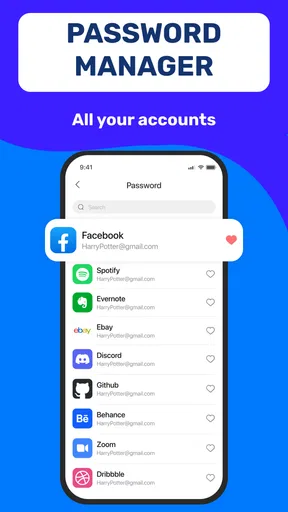
One of the standout features is the ability to manage multiple accounts. If you're juggling between work, personal, and maybe a few other accounts, this app is a game-changer. You can easily switch between accounts without getting lost or confused. Plus, the app supports a wide range of services, so whether you’re protecting your email, social media, or even some financial accounts, you’re covered.
In everyday use, having several entries together is most valuable when each one is easy to identify. I recommend checking the account labels as you add them rather than assuming you will remember which entry belongs to which login later. If you have a work account and a personal account with similar names, clear labels reduce the chance of copying a valid code from the wrong entry while you are in a hurry.
Worth Reading Before You Choose

Baby Panda World Brings Quick Play to Modern Phones, but Its Game Library Feels Busy

ESPN’s Live Game View Makes Following Close Games Easier

QuizzLand Review: A Good Fit for Short Trivia Breaks, Not Every Player

Basketball Stars: Multiplayer Is Fast, but Can It Recover When Matches Go Wrong?

WEBTOON Turns Phone Updates Into a Better Reading Routine

Link to Windows Runs on Shared Habits, Not Social Feeds
A realistic example is signing in to a work service on a borrowed meeting-room computer, then checking a personal account later from your own laptop. Instead of waiting for a text message to arrive or searching your inbox, you can open the authenticator and look for the corresponding account entry. I would still avoid leaving the app open or sharing a code with anyone: a one-time code is meant to prove that you control the account, not to serve as a general password.
Another neat feature is the backup and restore function. We've all been there—switching phones and losing all your data. With this app, you can back up your data securely, so switching devices doesn’t mean setting up everything from scratch again. Just restore your settings, and boom, you're back in business.
Even with a backup option, I would treat a phone change as a task to plan rather than something to rush through. Before wiping or trading in an old device, check that you can access your authenticator entries on the new one and successfully sign in to a few important accounts. Keep any recovery details you have in a separate, protected place until you are confident the move is complete. That extra check is less stressful than discovering a missing code after the old phone is gone.
Security and Usability
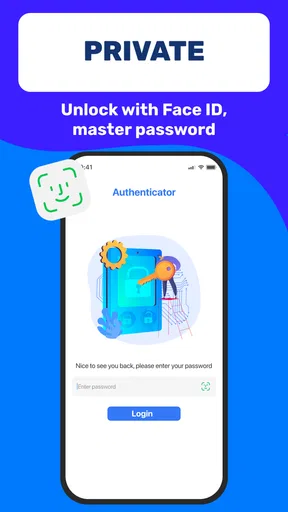
When it comes to security, the Authenticator App really shines. It offers advanced encryption, making sure your codes are safe and sound. I also love the biometric lock feature. It's peace of mind knowing that even if someone gets a hold of your phone, they still can't access your codes without your fingerprint or face ID.
Usability is another area where this app excels. The interface is user-friendly, with clearly labeled options and a clean layout. Even during my busiest days, navigating through the app was a non-issue. The real-time code generation is quick and reliable, which is crucial when you're in a hurry to log into an account.
There is one practical distinction worth keeping in mind: an authenticator helps with the extra verification step, but it does not replace the account password or the service’s own recovery process. If a login fails, first check that you selected the right account entry and that you are entering the current code, then follow the service’s official recovery route if the problem continues. Repeatedly trying codes from the wrong entry can waste time without solving the underlying issue.
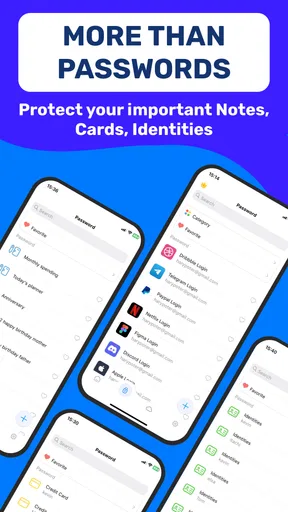
The app’s password-management role may appeal if you want related security tools in one place, but I would decide deliberately whether you want a dedicated password manager or a combined app. A specialist manager may suit someone who needs a particular workflow across many devices; an authenticator-focused tool may be more appealing if your main goal is quick verification codes. Either way, do not assume that keeping passwords and verification codes together automatically makes every account safer. Use unique passwords, protect access to your device, and keep account recovery information independent where possible.
Where it fits among security tools
Compared with SMS codes, an authenticator app gives you a dedicated place to retrieve sign-in codes instead of depending on a text arriving at the right moment. That can make a workday login or a trip through several accounts feel less interrupted. SMS may still be the easier option for someone who rarely signs in on new devices and does not want another app to maintain. The better choice depends on how often you need codes and how comfortable you are managing access on your phone.
Compared with using a separate authenticator for every service, keeping several entries together is more convenient and avoids jumping between apps. The trade-off is that one device becomes an important point of access, so securing the phone and preparing for a device change matter. If you prefer keeping security tools separated, a standalone authenticator may fit your habits better. I would choose based on the routine I can maintain consistently, not on the assumption that adding more tools always means better protection.
It may also be the wrong fit if you want a password manager to handle a very specific, established system and do not want authentication features alongside it. On the other hand, someone who is new to two-step verification may appreciate having a focused place to begin. The app is free to download, though it includes in-app purchases; I would explore the basic workflow first and only consider a purchase if I find a paid option I genuinely need.
Why You Should Consider It
If you're on the fence about downloading the Authenticator App, let me give you a nudge. It's not just about protecting your accounts; it's about convenience. Having all your two-factor authentication codes in one place is a massive time-saver. Plus, the added security is a bonus we all need in today's digital age.
The app has an average rating of 4.0 from around 86,000 ratings, and it has been installed over 10 million times. Those figures suggest it has found a substantial audience, though I would still judge it by whether its setup and daily routine suit you. It is listed for everyone, and its current version is 70.0, with Android 8.0 or later required. That makes checking your device’s Android version a sensible first step if you are installing it on an older phone.
What I really appreciate is how the app continues to update with new features and improvements. It’s not stagnant, and the developers seem committed to keeping it relevant and robust against new security threats.
For a beginner, the best next step is modest: install it, secure one frequently used account, test the code at a real sign-in, and review that account’s recovery options. Once that feels routine, add another account and label it carefully. If you do not want to manage a phone-based tool, or if your organization requires a different approved security method, follow that requirement instead. The convenience is worthwhile only when the method works for your actual accounts and responsibilities.
So, if you're looking for a reliable way to manage your digital security, give this app a shot. With its user-friendly interface, robust security features, and seamless account management, it’s a tool I find indispensable in my daily digital life. Plus, it's free, so there's really nothing to lose!
Happy securing!
Pros
- Easy to set up with a user-friendly interface.
- Supports multiple accounts and platforms.
- Offers offline functionality for added security.
- Quick scanning for seamless entry of codes.
- No ads
- ensuring a distraction-free experience.
Cons
- Limited customization of notifications.
- No cloud backup for account recovery.
- Cannot be used on multiple devices simultaneously.
- Lacks biometric authentication for extra security.
- Some users report occasional sync issues.
FAQs for Authenticator App
How does the Authenticator App enhance security for my online accounts?
The Authenticator App provides an extra layer of security by generating time-based, one-time passcodes (TOTPs) that are required in addition to your regular password. This two-factor authentication (2FA) method significantly reduces the risk of unauthorized access, even if your main password is compromised.
Is the Authenticator App compatible with all websites and services?
The app is compatible with most services that support two-factor authentication, such as Google, Facebook, and Dropbox. However, always check the specific website or service for compatibility details, as some may have unique 2FA requirements or may not support the app.
What happens if I lose my phone with the Authenticator App installed?
If you lose your phone, it’s crucial to have backup codes or an alternative 2FA method set up. Many services allow you to regenerate codes through account recovery options. Regularly backing up your codes or using cloud sync (if available) can also prevent loss of access.
Can the Authenticator App be used offline?
Yes, the Authenticator App can generate codes offline because it uses a time-based algorithm to create passcodes. Internet access is only needed when setting up the app with a service for the first time, making it a reliable option even without connectivity.
How difficult is it to set up the Authenticator App?
Setting up the Authenticator App is straightforward. Typically, it involves scanning a QR code provided by the service you’re securing or entering a setup key manually. The app generates a code that you then use to verify the setup, making the process user-friendly and quick.


